TextPaint Review: Drawing With Characters Instead of Pixels
TextPaint is an online tool for making visual art out of characters. Based on its public homepage, it is designed for people who want to draw, shape, and decorate a canvas using ASCII, Unicode symbols, emojis, and other typed characters. The site describes it as being “a bit like pixel art, but made entirely out of symbols,” which is probably the simplest way to understand the product.
This review is based only on publicly visible homepage information from TextPaint.com. I have not tested an authenticated account, paid plan, private dashboard, export workflow, or long-term project storage. The homepage evidence is fairly rich in terms of visible interface labels, but it does not provide every operational detail a serious user might want. So the best way to evaluate TextPaint is as a promising browser-based character-art workspace, while still checking the practical limits yourself before depending on it for important work.
What TextPaint Appears to Do
TextPaint appears to provide a web canvas where users can draw with characters rather than conventional brush strokes. The homepage says you can use ASCII, Unicode, emojis, or “any characters you like.” That makes it broader than a classic ASCII art generator, because it is not limited to the older ASCII character set. Unicode blocks, arrows, shapes, math symbols, decorative letters, emoji, and custom character palettes all seem to be part of the intended experience.
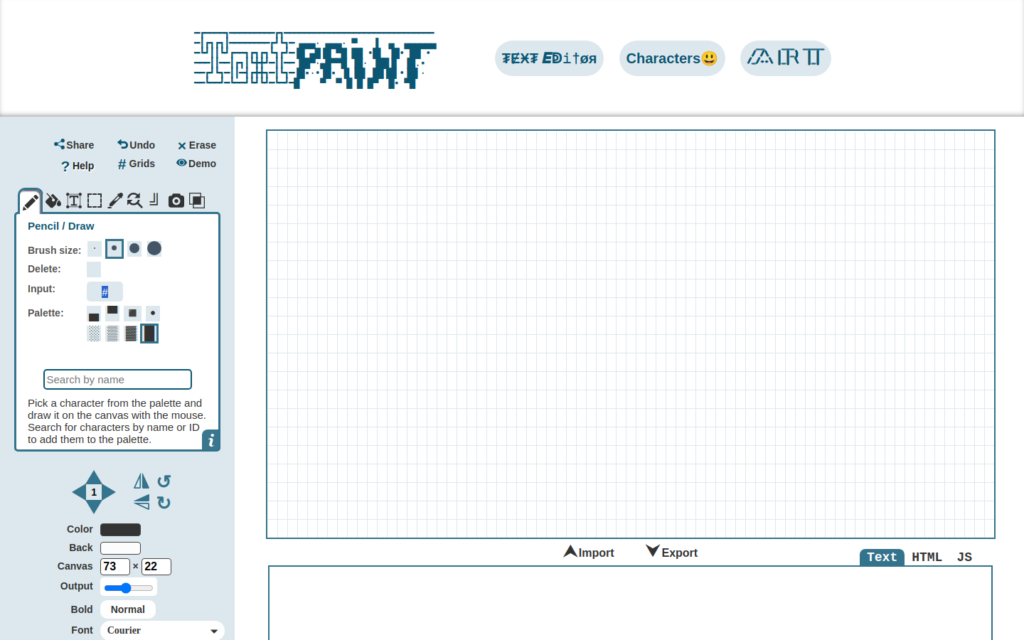
The visible homepage text also shows an interface with options such as a pencil/draw mode, erase, undo, copy, insert, crop, delete, grids, demo, palette selection, character search, find and replace, and directional movement controls. There are also references to output settings, bold/normal styling, fonts such as Courier, Lucida Console, Georgia, Times New Roman, Arial, Comic Sans, Impact, Tahoma, Verdana, and others. This suggests TextPaint is not just a static gallery or a simple converter. It appears to be an interactive editor for composing text-based visuals.
The homepage also includes sections titled “Getting Started with TextPaint,” “Canvas Features,” “FAQs,” and “Who Uses TextPaint?” That structure indicates the site is trying to support both beginners and more intentional creators.
Who TextPaint Is Likely For
TextPaint will make the most sense for people who already enjoy text-based visuals or need lightweight creative output that can be copied as text. A few likely use cases stand out from the homepage evidence.
First, it can serve hobbyists who enjoy ASCII art, Unicode art, emoji decoration, and playful online messages. If you have ever wanted to create a text face, a symbolic banner, a box-drawing layout, or a decorative message made from characters, TextPaint looks built for that.
Second, it may help community managers, forum users, and social media posters who want distinctive text decorations. The visible interface includes “Copy” and “Share Link,” which suggests the tool is designed for output that can leave the canvas and be reused elsewhere. However, because the homepage does not document all sharing behavior in detail, users should verify how copied artwork appears on their target platform.
Third, it could be useful for people making README embellishments, plain-text diagrams, retro-style headers, or lightweight visual separators. Character art is still popular in developer communities, chat spaces, documentation, and terminal-themed projects. TextPaint’s canvas metaphor may be easier than manually aligning symbols in a text editor.
Fourth, it may appeal to educators or creative workshop leaders who want to introduce the idea that visual design does not always require images. ASCII and Unicode art can be a fun way to teach grids, spacing, typography, and symbolic representation.
Strengths Suggested by the Homepage
No accounts or installs are emphasized
One of the clearest homepage claims is “No accounts, no installs — just a canvas and your creativity.” That is a meaningful advantage if accurate in everyday use. Many creative tools require signups before a user can even try the editor. TextPaint appears to position itself as something you can open in a browser and begin using quickly.
For casual creators, this matters. A person making a quick text banner or emoji sketch probably does not want a full design suite, a download, or a registration wall. TextPaint’s value is partly in its immediacy.
It supports more than plain ASCII
The product name and title focus on ASCII art, but the homepage description expands the scope to Unicode, emojis, and any characters users like. That makes the tool more flexible than a strict ASCII-only editor. Unicode block characters, box-drawing lines, arrows, mathematical marks, and decorative scripts can create richer results than standard keyboard symbols alone.
The visible homepage sample includes many character categories, including arrows, shapes, math, marks, letters, emojis, and drawing blocks. For users who do not know where to find those symbols manually, an integrated palette and search function could save time.
The interface appears feature-rich for a free web tool
The homepage sample reveals many editing controls: brush size, erase, undo, crop, selection tools, copy, insert, grids, merge layers, import, export, transparent space, directional movement, font choices, bold/normal output, and find-and-replace. I would not claim how smoothly each feature works without testing, but the public page clearly shows that TextPaint aims to be more than a novelty typing box.
This is important because character art is surprisingly sensitive to spacing and alignment. A usable editor needs canvas controls, consistent fonts, and easy correction. TextPaint appears to understand that need.
It encourages experimentation
The homepage’s visible palette and decorative examples give the site a playful feel. This is not presented as a corporate diagramming tool. It looks more like a creative playground for symbols. That tone can be a strength because ASCII and Unicode art often reward trial, error, and visual tinkering.
Caveats and Limitations to Consider
The biggest caveat is that the available evidence comes from the public homepage. The page shows many features, but it does not fully explain limits around saving, project persistence, file handling, browser compatibility, privacy, accessibility, or commercial use. If those things matter to your workflow, you should check them directly.
For example, the homepage includes labels such as “Import,” “Export,” “Share Link,” and “Open,” but the provided evidence does not specify supported file formats, whether shared links are public, whether work is stored locally or remotely, or how long links remain available. Those details are important if you plan to use TextPaint for repeat work rather than one-off sketches.